
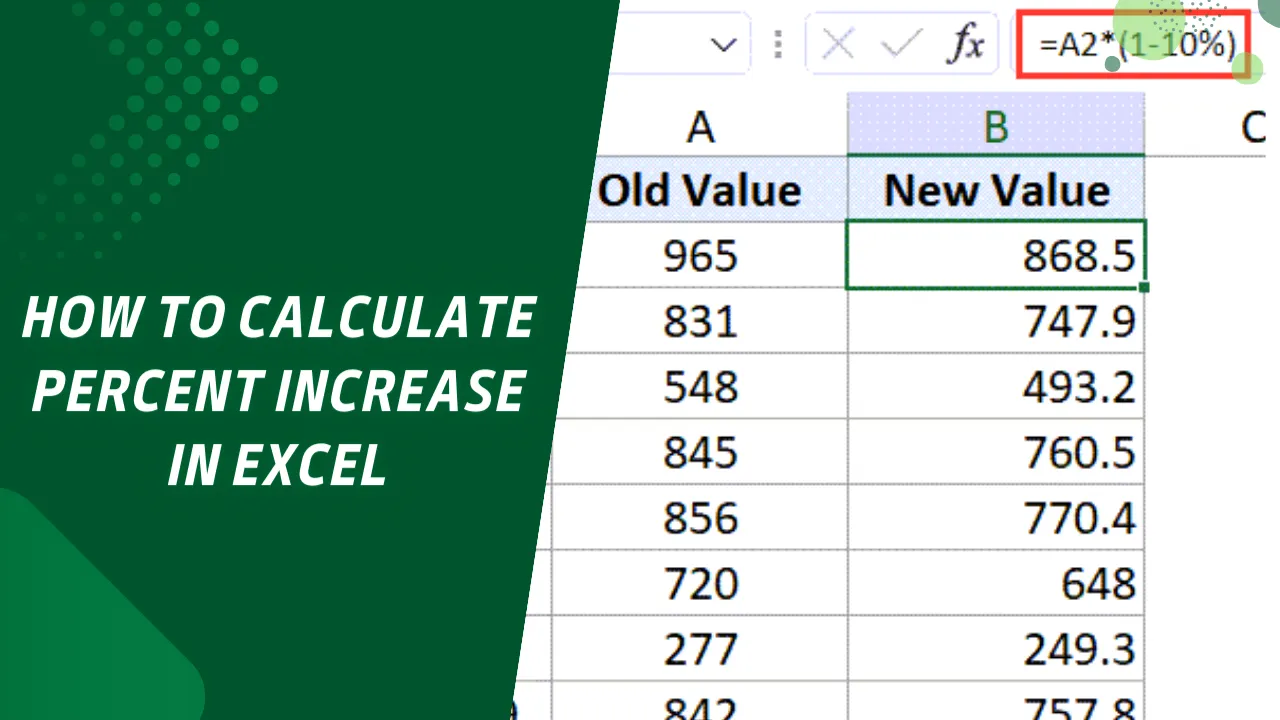
Knowing how to calculate a percentage increase in Excel is a simple but powerful skill. It helps you track growth, analyze data, and understand trends quickly. Whether you’re managing sales, budgeting, or comparing performance, Excel makes this task fast and easy. Let’s go over how to do it step by step so you can use it right away.
Understanding Percentage Increase
A percentage increase shows how much a number has grown compared to where it started. For example, if a value rises from 100 to 120, it increased by 20%. You can use this to compare results across months, years, or products. Because percentages are universal, they make data easier to understand at a glance.
The Simple Excel Formula
The formula for percentage increase in Excel is easy to remember. You can write it like this:
Then, multiply the result by 100 or change the cell format to a percentage. Either way, you’ll get the same result. Another version of the formula looks like this:
Although both formulas work, the first one is usually simpler. Once you format it as a percentage, Excel handles the math for you automatically.
Step-by-Step: How to Calculate in Excel
Let’s see how this works with an example. Suppose your old value is in cell A2 and your new value is in cell B2.
-
Click an empty cell, such as C2.
-
Type this formula:
-
Press Enter to get the result.
-
Click the percent icon (%) on the toolbar to format the result.
Now Excel shows the answer as a percentage instead of a decimal. If your old value is 100 and your new value is 120, the result will be 20%. That means your value increased by 20%.
How to Handle Decreases
The same formula also works for decreases. Let’s say your old value is 100 and your new value is 80. If you enter the same formula, Excel gives you -20%. The minus sign means there was a 20% drop. You don’t need a new formula for decreases, which keeps things simple.
Avoiding Common Mistakes
Sometimes, Excel can show an error. This happens when the old value is zero because you can’t divide by zero. To prevent this, use a small adjustment in your formula:
This version checks if the old value is zero. If it is, Excel leaves the cell blank. That way, you don’t see an error message. You should also check that your result is formatted as a percentage. If you see 0.2 instead of 20%, just click the percent format again.
Using It for Growth Projections
Once you know how to calculate percentage increase, you can use it to forecast future growth. The formula is simple:
For example, if your old value is 100 and you expect a 10% increase, type:
Excel will show 110. This method is perfect for predicting sales or budget growth. It’s fast, clear, and easy to adjust later.
Why This Matters
Knowing how to calculate percentage increase helps you make smarter decisions. You can track progress, measure performance, and explain data more clearly. Since Excel does the math for you, you reduce errors and save time. Because the steps are so simple, anyone can do it—even beginners.
Conclusion
Calculating percentage increase in Excel is one of the easiest and most useful skills you can learn. You only need a simple formula, a few clicks, and the right format. Once you know how, you can apply it in almost any situation. From sales to reports, this trick helps you understand change quickly and confidently.
Now that you know how to do it, open Excel and give it a try. You’ll be surprised how often this small skill makes a big difference.
How to Add a Font Family in Figma (Step-by-Step for Web and Desktop)